
Multiplayer Workouts
New in Gym Vibes 0.8.0.
Training with a friend? Multiplayer Workouts lets one person run the workout and everyone else follow along on their own phone. The host plans the session, and each lifter logs their own sets, at their own weights, in their own history.
This guide covers both sides: hosting a session, then joining one.
How it works
- The host is the person whose workout it is. They invite friends, and they decide what everyone is doing.
- Each guest gets their own copy of the host’s workout. When the host adds, removes or rearranges exercises and sets, or changes the weight or reps, the change appears on every guest’s copy.
- Finishing a set is personal. Checking off your set never checks off anyone else’s.
- Your own weights stay yours. A guest can change any set to suit them. That set stops following the host, and the guest can follow the host again with one tap.
- Exercises a guest adds stay on the guest’s workout. Only the host’s plan is shared.
- It works everywhere Gym Vibes does: iPhone, iPad, Android, Mac and the web app. Scanning a QR code inside the app needs a phone camera, so that one option is on iPhone and Android only.
Hosting a session
1. Start your workout
Start a workout the way you normally would (see Log a Workout). Add the exercises you plan to do, or start from a template. Your friends will get whatever is on the workout, and anything you add later.
When you’re ready, tap the Workout with a Friend icon (the person with a plus) at the top of the screen.
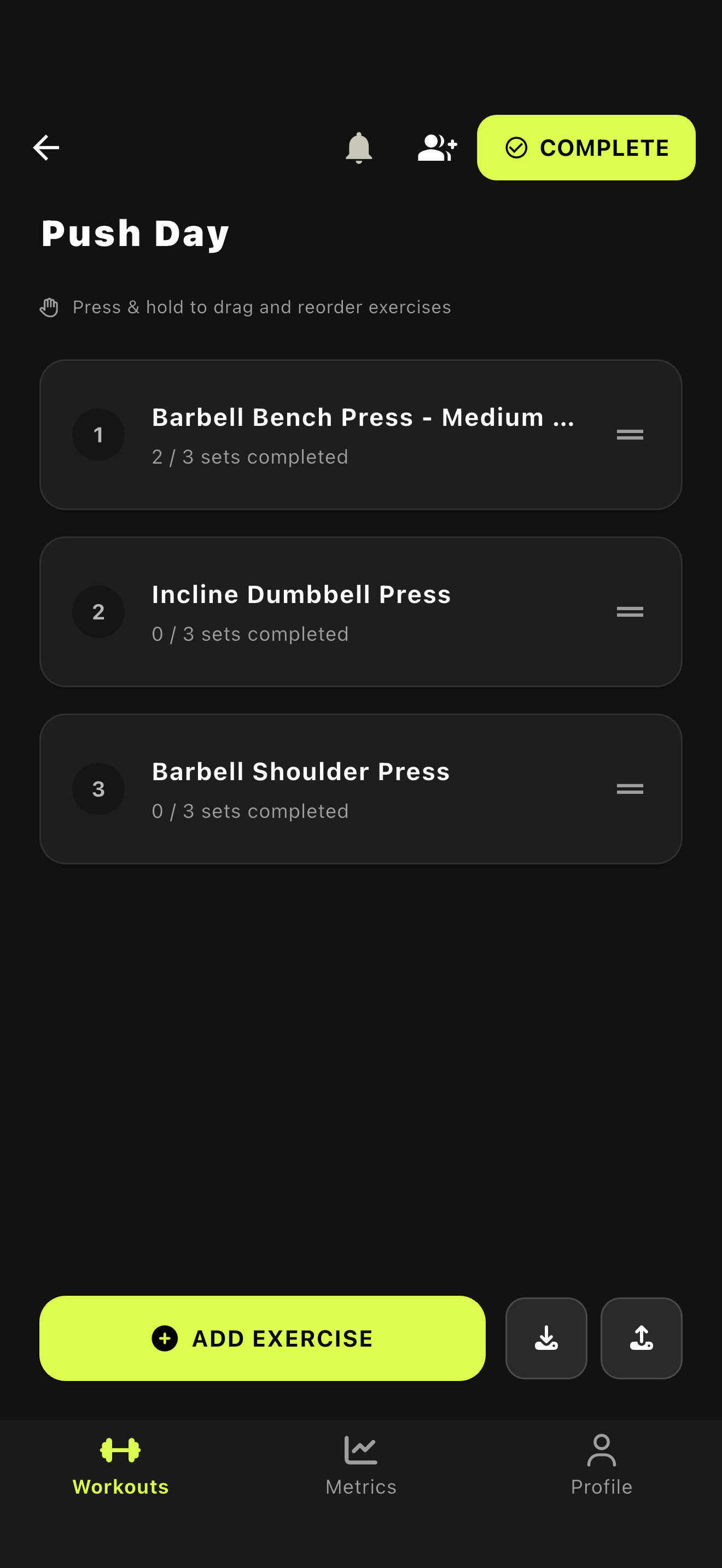
Tap Workout with a Friend
2. Invite your friends
The Workout with a Friend sheet gives you two ways to bring people in:
- Show your QR code. Your friend scans it with their phone’s camera. The code is a link, so it opens Gym Vibes if they have it, or the web app if they don’t. If they aren’t signed in yet, they sign in and land straight in your workout.
- Type their username and tap Invite. They get the invite on their phone right away.
Everyone you’ve invited who hasn’t answered yet is listed under Waiting on, so you can see who you’re still waiting for. Tap Withdraw to take an invite back.
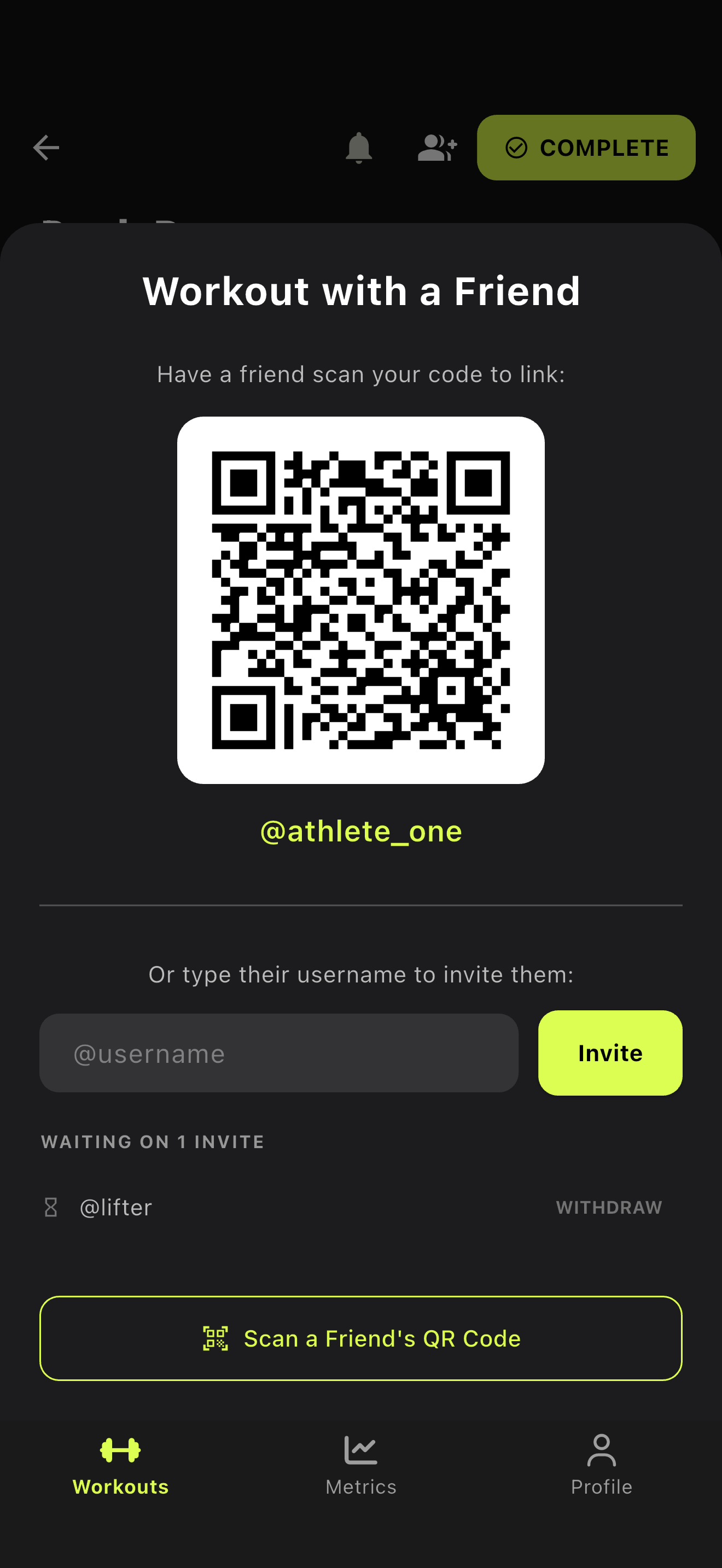
Type a username and tap Invite
On a phone you’ll also see Scan a Friend’s QR Code. Point it at your friend’s own code, which they find by tapping their profile card on the Profile tab, to invite them without typing anything.
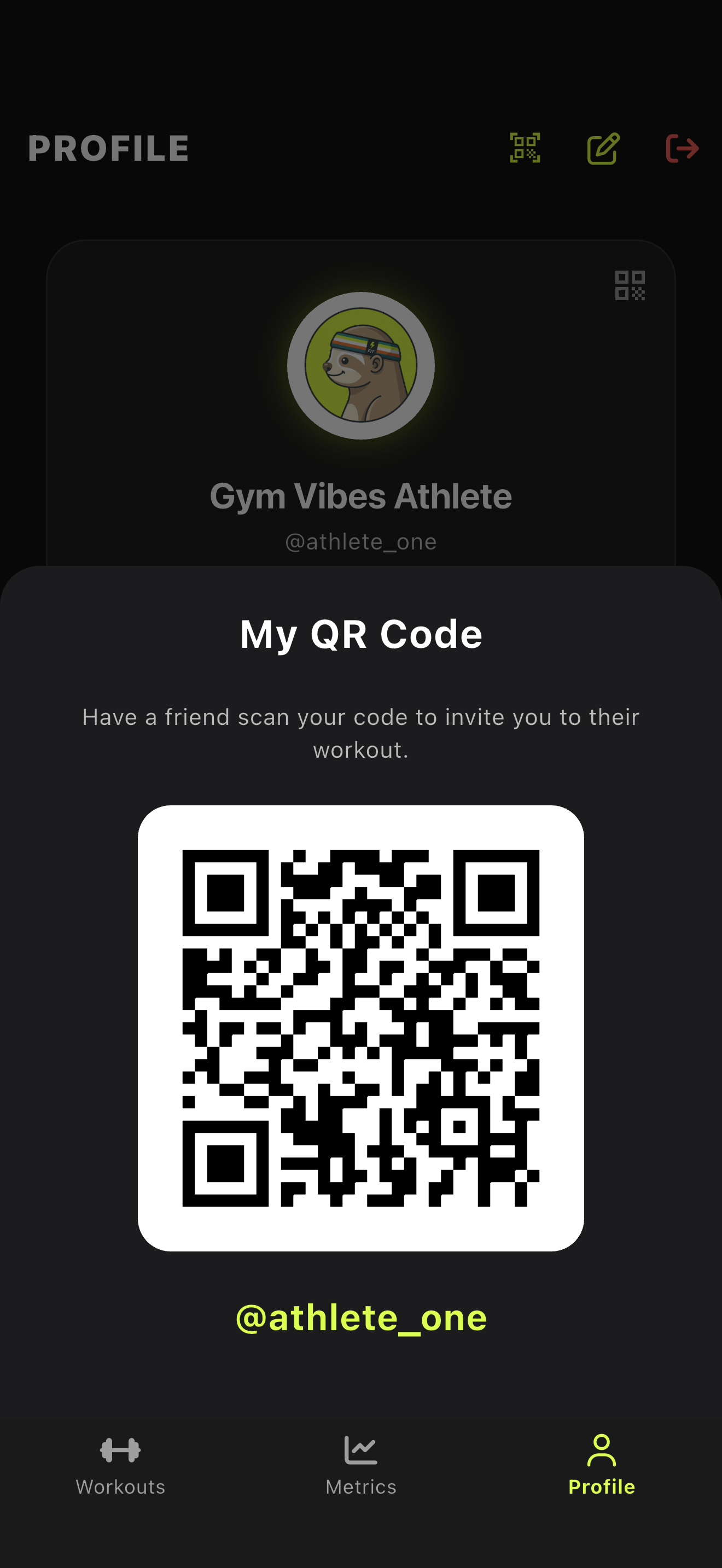
A friend's code, from their Profile tab
3. See who’s training with you
As friends join, their avatars appear at the top of your workout. Tap them to open Session Participants, the list of everyone in the session. You’re marked HOST.
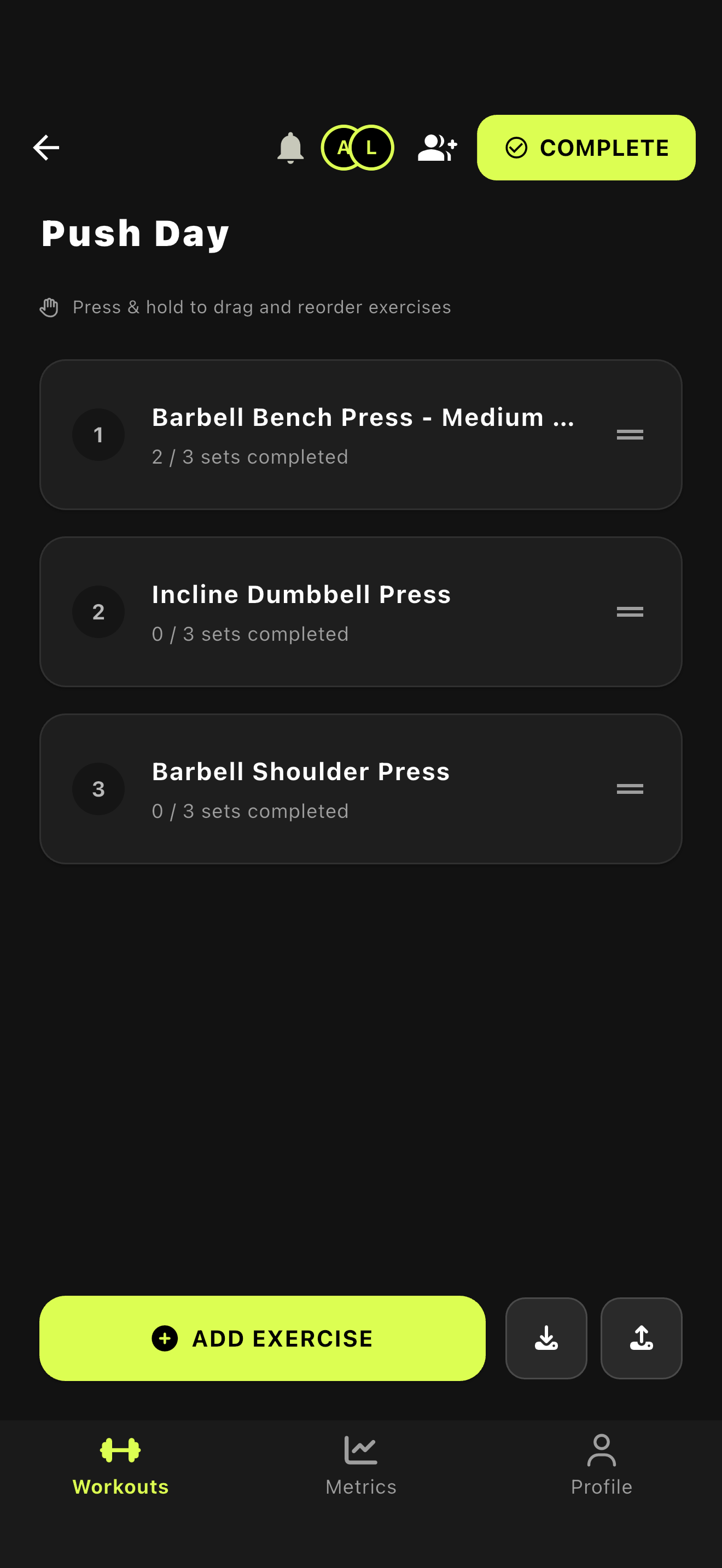
Tap the avatars
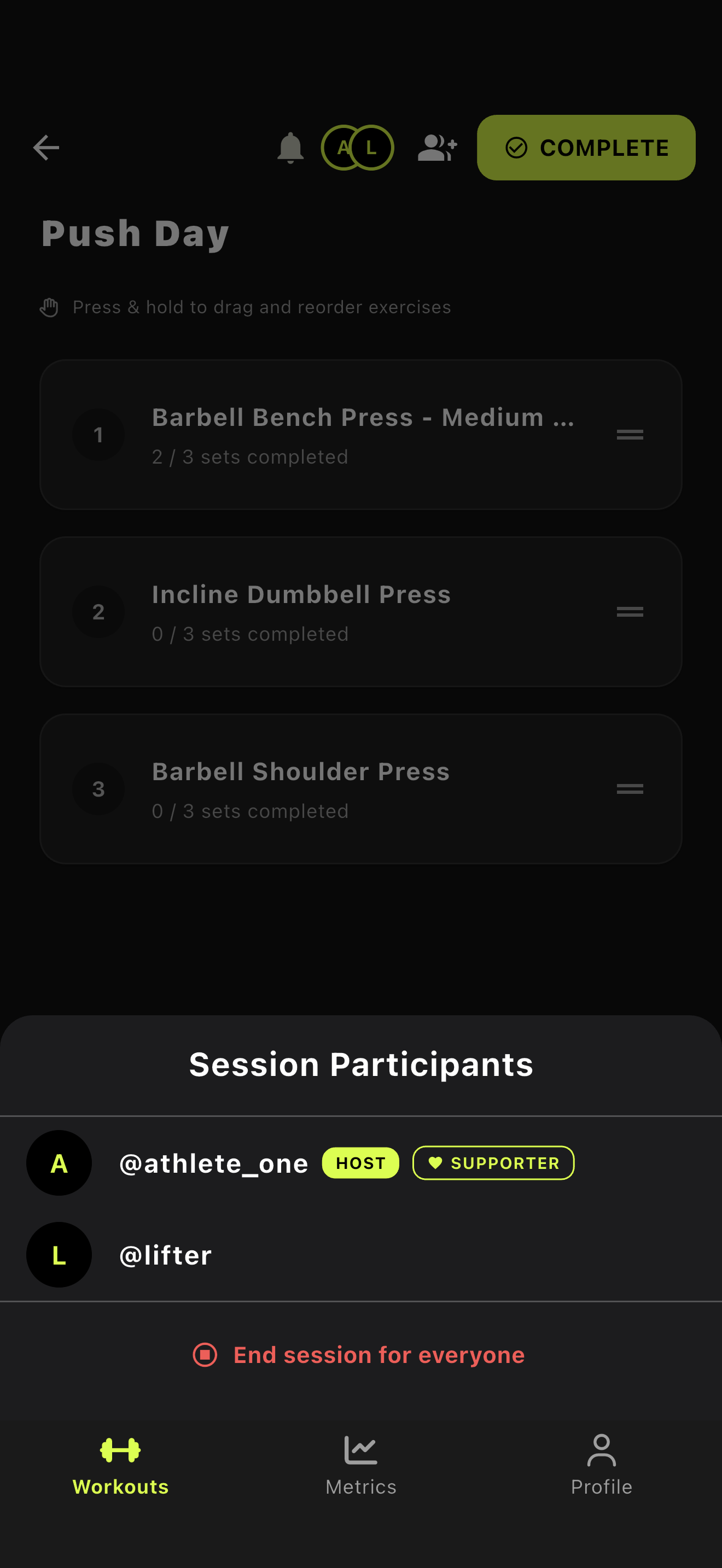
Everyone in the session, and the way to end it
4. Lift
Train as usual. As you go, your friends’ workouts keep up with yours: exercises you add, remove or reorder, sets you add, the weight and reps you set, and exercises you link into a superset.
Your friends check off their own sets, so you’ll never see their progress mixed into yours.
5. End the session
A session ends in one of two ways:
- You finish your workout. Tapping Complete ends the session for everyone.
- You end it early. Open Session Participants and tap End session for everyone. Your own workout carries on, so you can keep logging.
Either way, your friends keep everything they’ve logged and can finish their workouts on their own.
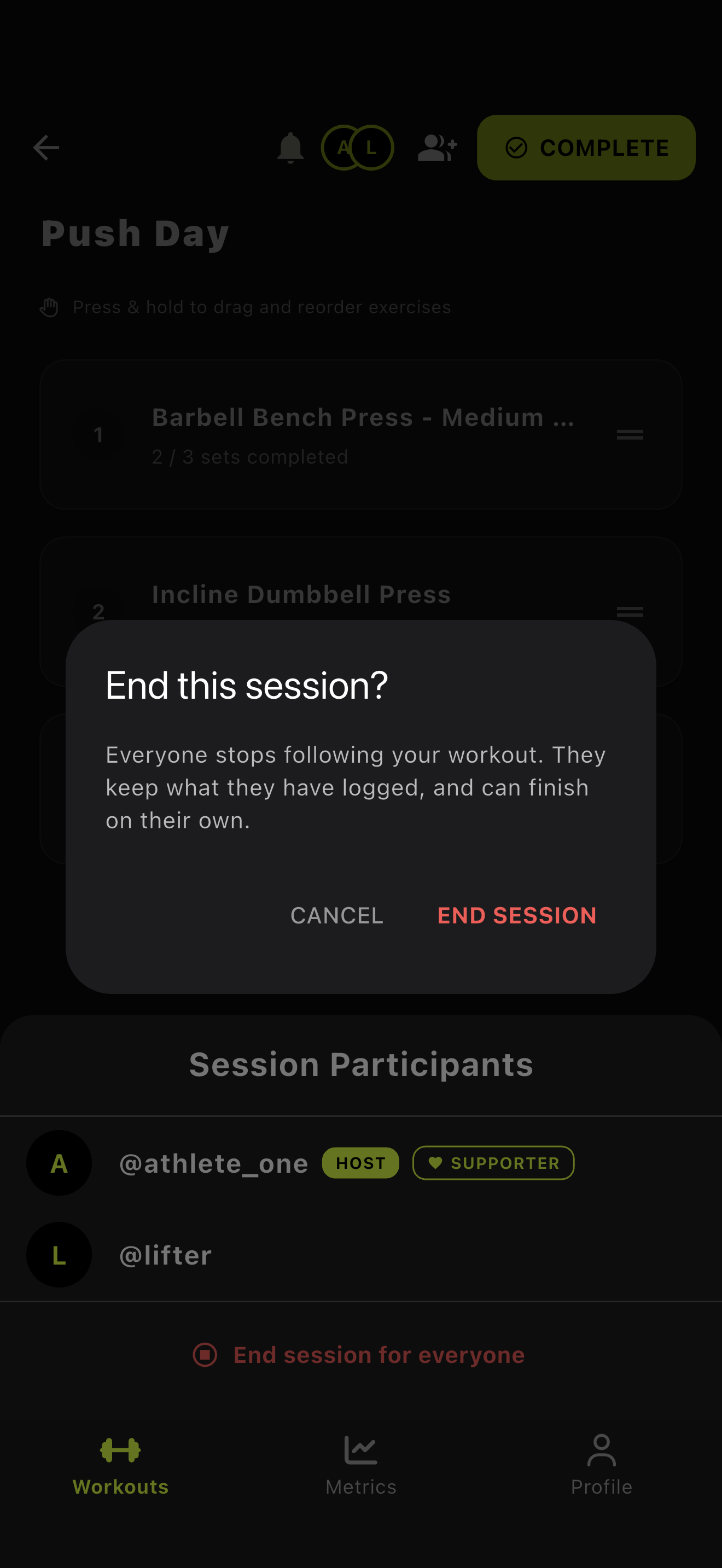
Confirm with End Session
Joining a session
1. Get the invite
When someone invites you, a green banner pops up wherever you are in the app, and the bell at the top of the screen shows how many invites are waiting. Tap View, or tap the bell any time later.
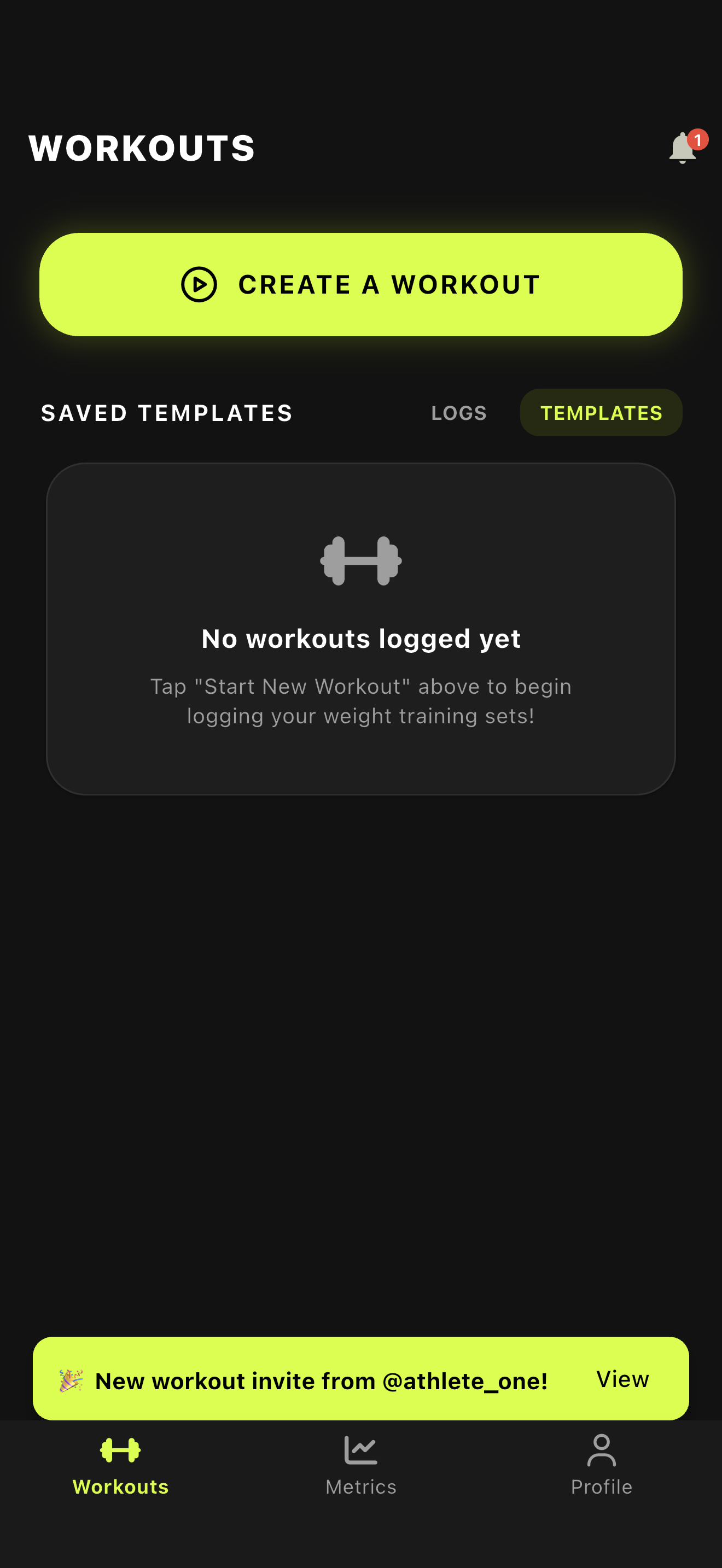
Tap View
2. Accept
Workout Invites shows who invited you, which workout it is, and how many other lifters are already in. Tap the check to join, or the X to decline.
You can also join without an invite: scan the host’s QR code with your phone’s camera, or with the scan icon at the top of your Profile screen.
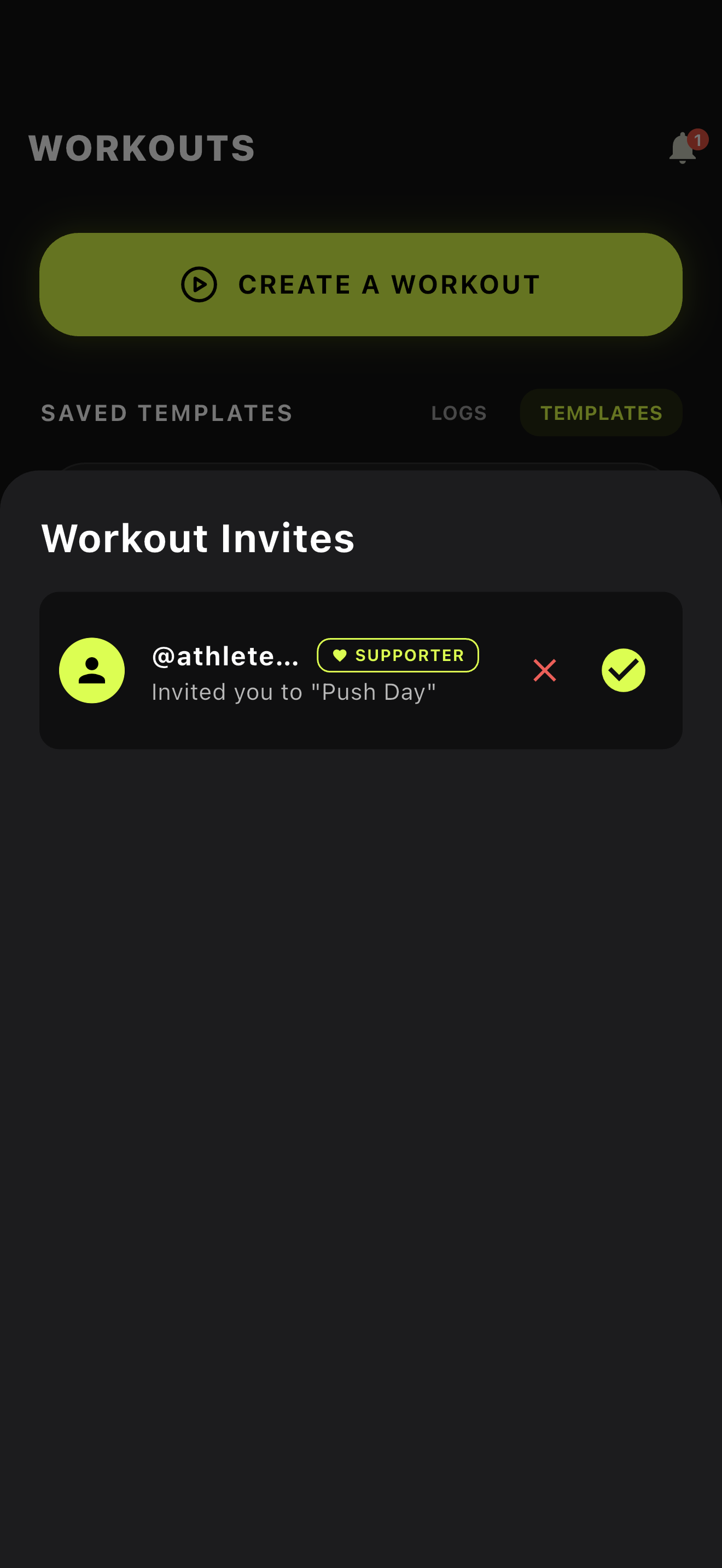
Tap the check to join
3. Train along
Accepting gives you your own copy of the host’s workout, and everyone’s avatars appear at the top of the screen. Tap Start when you begin lifting. As the host adds exercises and sets, they appear for you too. Log your sets exactly as you always do.
Want to throw in something extra? Add it. Exercises you add stay on your workout and don’t change anyone else’s.
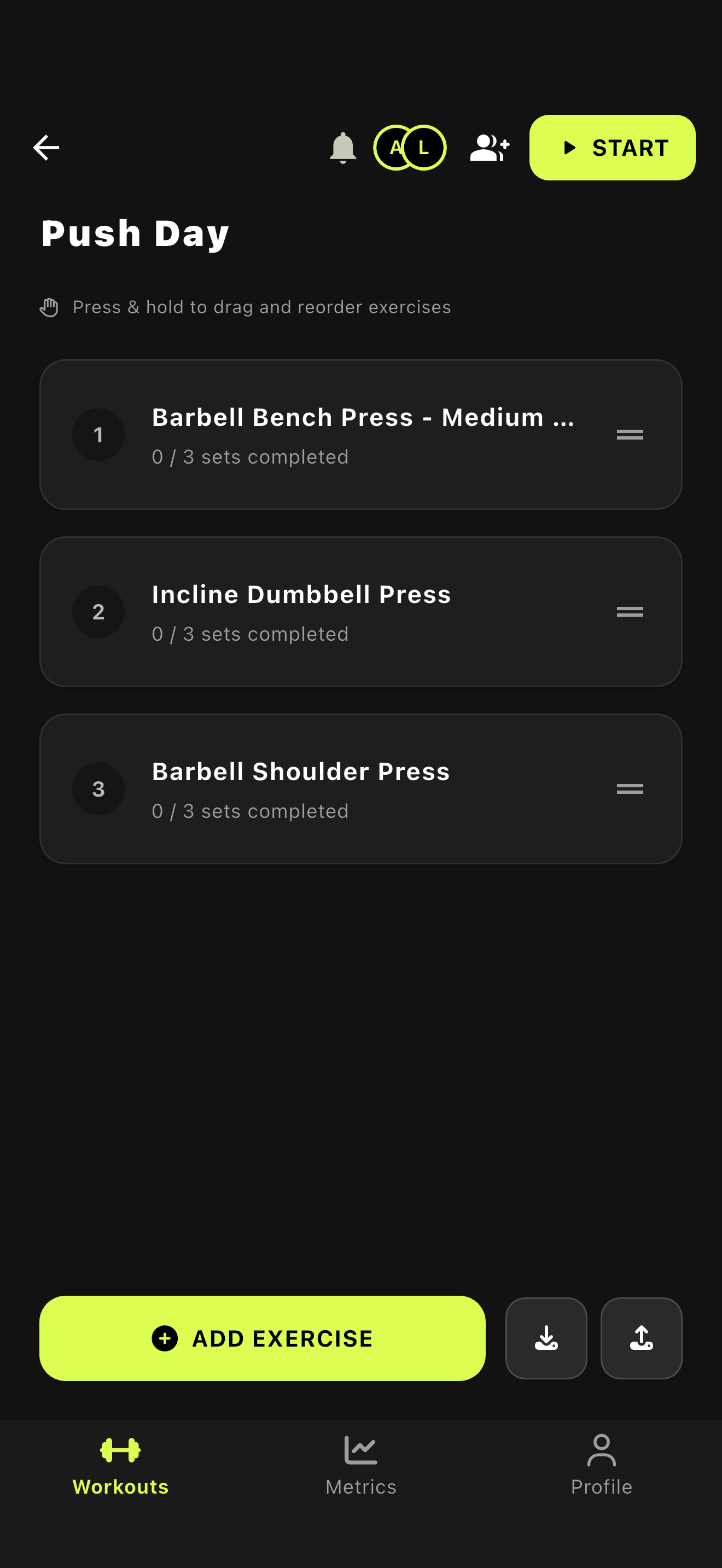
Your copy of the host's workout
4. Make a set your own
Lifting lighter or heavier than the host? Change the weight or reps on any set. That set becomes yours: the host’s changes stop landing on it, and a note at the top of the exercise tells you how many of your sets no longer follow the host.
Tap Follow Host to put those sets back on the host’s numbers.
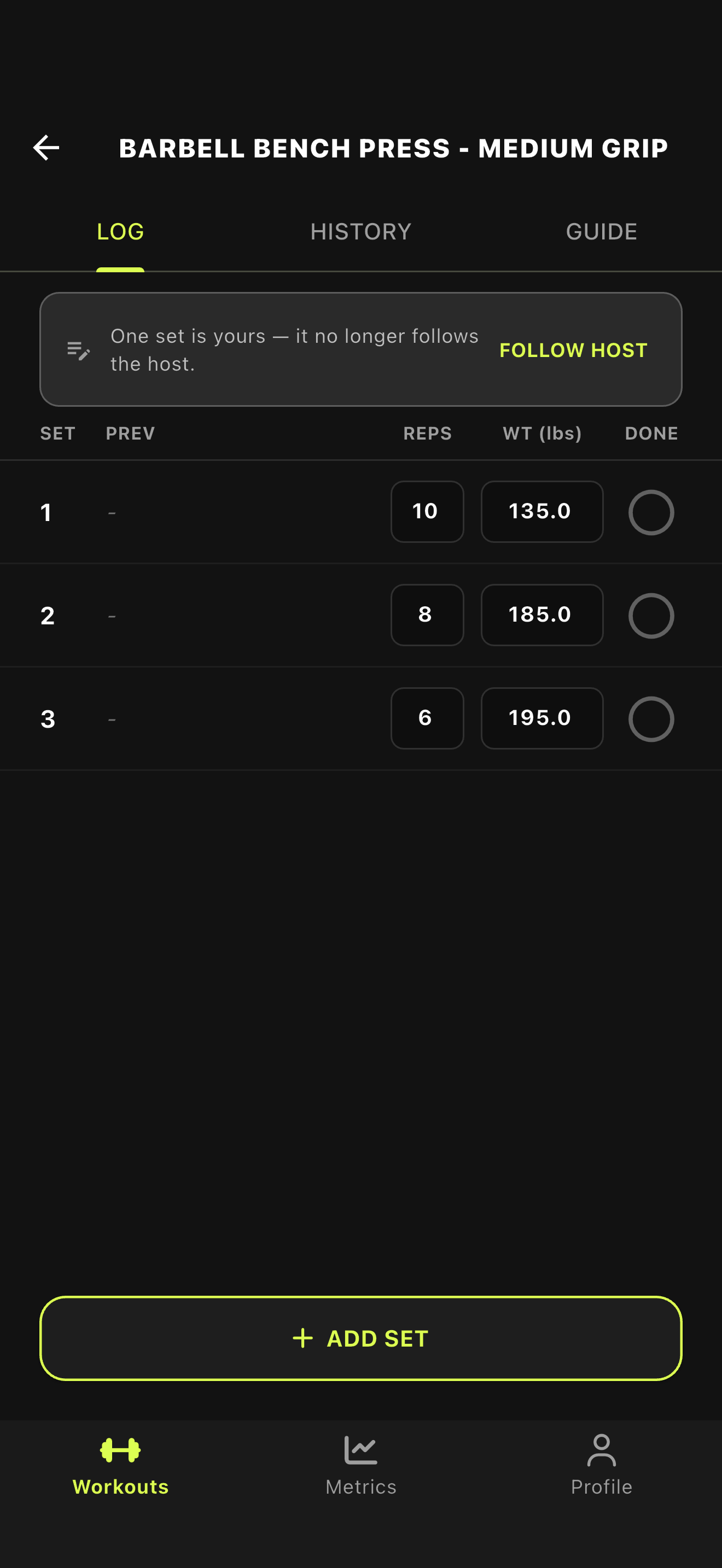
Tap Follow Host to take the host's numbers again
5. Leaving, and when the session ends
To leave early, tap the avatars at the top of the screen and choose Leave session. You keep your workout and everything you’ve logged.
When the host finishes or ends the session, you’ll see This session has ended. You are finishing on your own. Nothing is lost. Carry on, and tap Complete when you’re done.
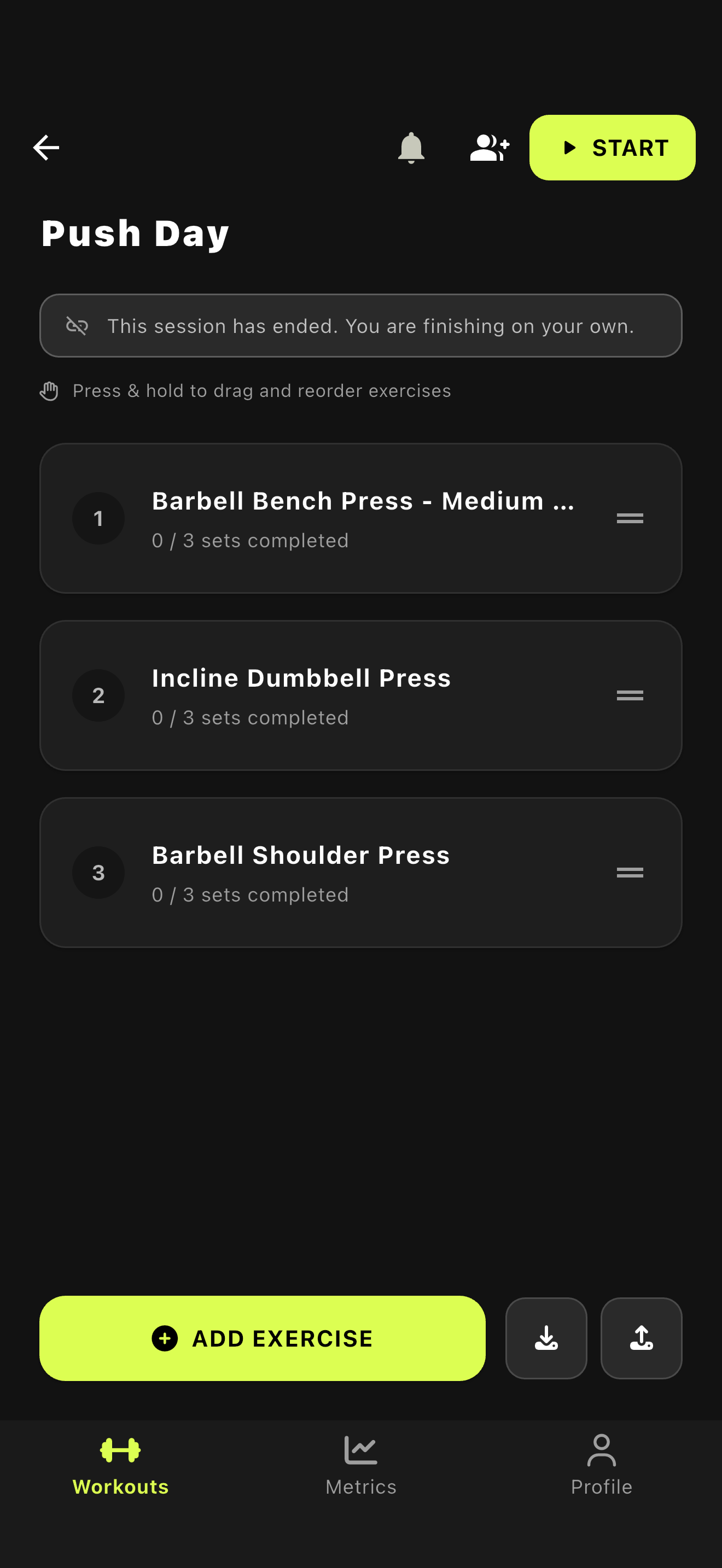
The session has ended; your workout hasn't
Supporter badges
People who support Gym Vibes get a badge beside their name wherever the people they train with see them: the session list, the invite inbox, and the invites a host is waiting on.
- MONTHLY marks subscribers.
- SUPPORTER marks everyone else who has supported the app.
Your supporter tier lives on your Profile screen (see Manage Your Profile).
Questions
Do my friends need the app? They need a free Gym Vibes account. The QR code opens the web app for anyone without the app installed, so they can sign up and join from their phone’s browser.
What if the gym has no signal? Your own logging works offline as always. Joining needs a connection, and the host’s changes reach everyone once their phones are back online.
Can I use an old QR code to rejoin later? No. A host’s code only works while their session is running.